Excel for the Web: Borders Can Disappear Without Edits
Copyright Notice: This article is an original work licensed under the CC 4.0 BY-NC-ND license.
If you wish to repost this article, please include the original source link and this copyright notice.
Source link: https://v2know.com/article/1475
You open an Excel workbook from OneDrive to check a few numbers. The borders look fine, and you leave every cell alone. When you reopen the file, some of those borders are gone.
Excel for the web can save a new version and lose cell borders even when you make no edits.
In our A/B tests, this happened when cells used a named style marked hidden="1". We reproduced it with custom styles and with Excel's built-in Total style.
A/B test with the built-in Total style
In desktop Excel, we applied the Total cell style (builtinId="25") to 12 cells. Each cell had a thin top border and a double bottom border. The two copies differed only in whether the style had hidden="1".
We uploaded both copies to OneDrive and opened them in Excel for the web. We made no changes to values or formatting and did not click Save. About three minutes later, with both tabs still open, OneDrive's version history showed that both files had gone from version 1.0 to 2.0.
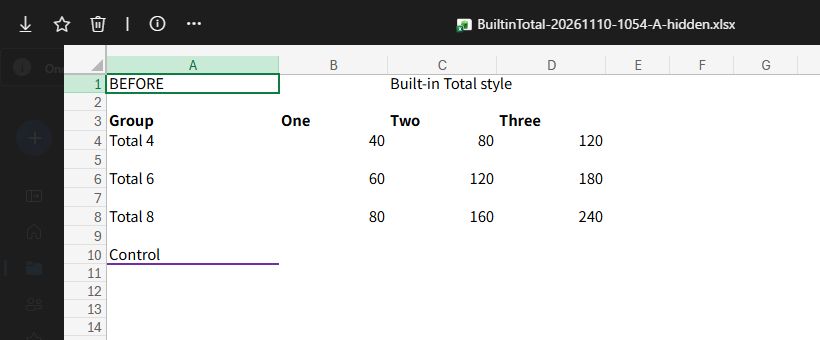
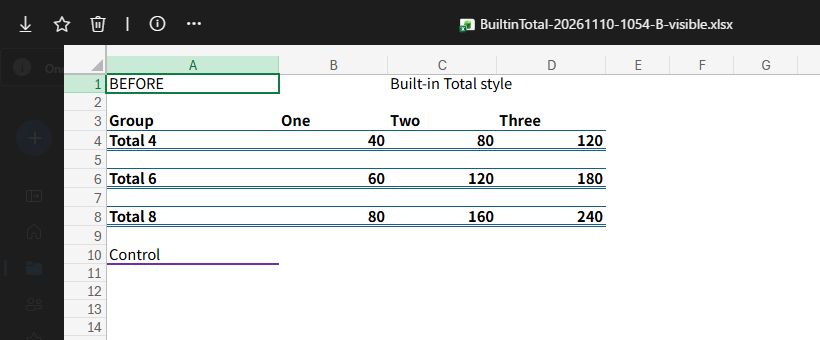
Both saved files kept the cell values and the purple control border at the bottom. In an earlier test with no edits, the custom styles PreservedFormat13 and PreservedFormat14 showed the same pattern. The 34 test cells in A lost their borders, while all 34 in B kept them. We tested these three named styles.
Earlier test with one cell edit
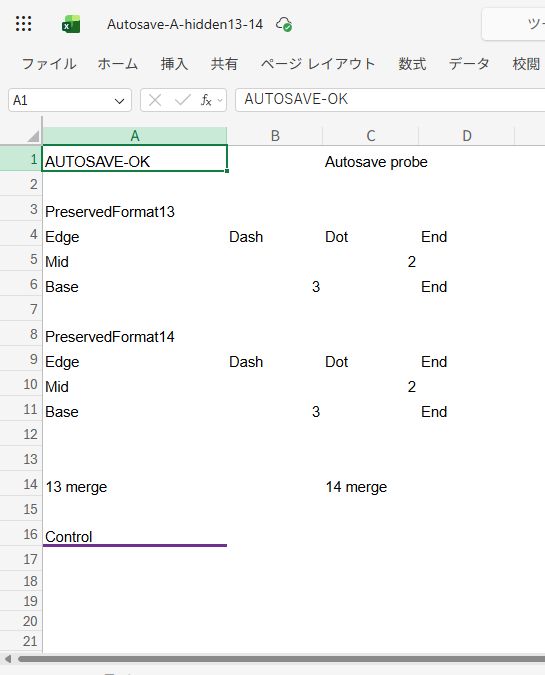
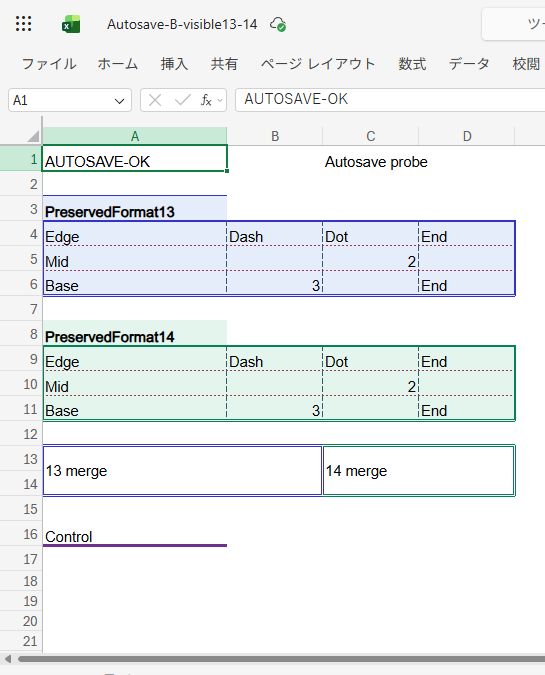
In a separate run with the custom styles, we changed cell A1 from BEFORE to AUTOSAVE-OK outside the test area. Both copies kept the new value and the merged ranges. A lost the borders on 34 cells, and B kept them.
Why the borders look fine until you reopen the file
-
Open the file
The browser draws the borders from the original workbook.
-
Leave it open
OneDrive already has version 2.0, while the open tab still shows the borders it loaded.
-
Reopen it
Excel reads version 2.0. In A, cells that lost their style references now show the default formatting.
The downloaded files identified Excel for the web as the app that saved them, and A1 still read BEFORE. The test confirms that a save happened after opening. It does not establish what prompted Excel to save. Microsoft's guide to using Office for the web in OneDrive
The style is still there, but the cell has lost its reference
Think of a named style as a card with formatting instructions. A cell uses an index to find its formatting. The .xlsx specification allows hidden="1" on a named style so the app can leave it out of the style gallery. Microsoft's documentation for named cell styles
In saved workbook A, the style definition was still present, but the test cells had lost their references. The hidden flag was the condition that made the borders disappear in these tests. The references went missing when Excel for the web saved the file. That points to a problem with how the web app preserves formatting. We have not found a public confirmation from Microsoft for this behavior.
How to check the style references in the XML
A worksheet cell's s attribute indexes a record in cellXfs in xl/styles.xml. The record's xfId can point to a base style in cellStyleXfs. A named style can refer to the same base style. Microsoft's cell index notes and cell format reference.
In the Total test, cell A4 started with s="2" in both files. After saving, the attribute was gone in A and still present in B. Style indices can also be renumbered during a save. In the custom-style control, A3 went from s="35" to s="2" and kept its borders. Compare the formatting record the index points to.
How to prevent or recover missing borders
If the workbook still has its borders
Keep an intact original and work on a copy. If you maintain the workbook's XML, check xl/styles.xml in the .xlsx archive. Remove hidden="1" from the relevant <cellStyle> used by the affected cells. Keep the style names, indices and formatting records. Repack the workbook with its original internal paths.
Open the copy in Excel for the web, wait, then download or reopen it to check the borders. If people will edit the workbook together, also test a small edit followed by a save and reopen.
Example change in styles.xml
The built-in Total style is named 集計 in our test file. Use the names and indices from your workbook.
<!-- Before -->
<cellStyle name="集計" xfId="1" builtinId="25" hidden="1"/>
<cellStyle name="PreservedFormat13" xfId="13" hidden="1"/>
<cellStyle name="PreservedFormat14" xfId="14" hidden="1"/>

<!-- After -->
<cellStyle name="集計" xfId="1" builtinId="25"/>
<cellStyle name="PreservedFormat13" xfId="13"/>
<cellStyle name="PreservedFormat14" xfId="14"/>
If the borders are already gone
Removing the hidden flag cannot bring back a cell's lost style reference. Save a copy of the current file, then find a version with intact formatting in OneDrive's version history or a local backup.
- If you can return to an older version, restore the last version with its borders intact. Microsoft's steps to restore a previous Excel version
- If you need to keep later edits, open both versions in desktop Excel. If their sheet layouts and cell positions match, copy the affected ranges from the intact version and use Paste Special > Formats in a copy of the current workbook. Check the borders, merged ranges and cell values before replacing the live file. If you repair the workbook in code, map the intact formatting to the current workbook's style records and verify the same ranges.
This article was last edited at